Showing posts with label Sharepoint 2010. Show all posts

Sunday, February 5, 2012

Using SPQuery to return SharePoint list items

Using SPQuery and CAML(Collaborative Application Markup Language) is an efficient way to retrieve data in SharePoint list. It help us to filter and order items in the selected list.
In this post, I want to introduce to you an example of using them.
In the following code, I want to get all the employees with the position of Developer in Employee list, then, I order them by their Salary ascending.

            SPWeb web = SPContext.Current.Web;
            SPList list = web.Lists["Employee"];
            string query = @"<Where>
                                              <Eq>
                                                    <FieldRef Name='Position' /><Value Type='Choice'>{0}</Value>
                                             </Eq>
                                   </Where>
                                   <OrderBy>
                                            <FieldRef Name='Salary' Ascending='False' />
                                   </OrderBy>";
            query = string.Format(query, "Developer");                                                           
            SPQuery spQuery = new SPQuery();
            spQuery.Query = query;
            SPListItemCollection items = list.GetItems(spQuery);
            grid.DataSource = items.GetDataTable();
            grid.DataBind();

Result:


Hope this helps!

Thursday, February 2, 2012

Sharepoint 2010 – New functionalities for listings

Enforce Unique Values in Site Columns Ability

In MOSS 2007, we do not have any option to set unique column value for the field in document library or list. We can still achieve that with the help of event handlers and adding some code in the ItemAdding event. But still there was no direct way to do it.
Now in SharePoint 2010, we have the built in functionality to enforce the uniqueness of the field. But yes do remember that the field must be indexed first before you want to set it as a primary key.
Well, just a quick question. Do we have anything as primary key in MOSS 2007? Yes, we do have and that is ID field in list or library. However that does not solve the purpose as it is just used to identify items and used heavily in coding purpose.
So let’s see how to go ahead with primary key in list field.
Create a list in SharePoint 2010 site and then create a field that you want to have a primary key. Go to list settings. Go to indexed columns and choose that column to be indexed.
When you create a field now then we have an option to enforce the unique value. This can be set only when you have made that column indexed. So if you have not indexed this column, SP 2010 will ask you to do it.
 Once you set this field as unique key, then go ahead and add one value and try to add another with the same. It will not allow you to do so and show the message.

Lookup

SharePoint 2010 offers a lot of new functionality for listings. One of them is “Additional Columns”. So what does it mean?
This means that you create a lookup field from the Annoucement list. But if i want to see the Title and the Expires, simply stick in the check box as the following figure. This is established using so called additional columns.
 

Validation settings

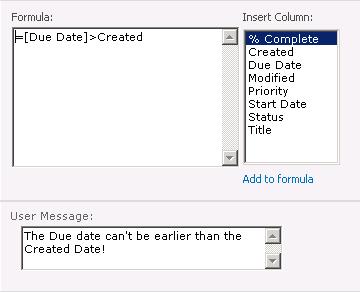
In SharePoint 2010, a new setting point in List and Library settings is available. This point is called “Validation settings”. Validation settings will be very missed in SharePoint 2007, because there wasn’t a way to avoid such easy and daily business related things like dates in the past etc. It seems that this will be worked with SharePoint 2010, but how the feature looks like? In the pre-beta version of SP2010 I work with, you can buil expresions like in calculated columns. I tried the following expression:

And, there’s the trick, I wasn’t able to save the task! Ok, in this version I don’t get the message that was set up in the validation settings, but seems it works! Validation isn’t the newest feature at all, but hey, it’s reeeeaaly usefull!
Hope this help!

Tuesday, January 17, 2012

Do SharePoint & Silverlight Have a Future Together?

Silverlight was Microsoft's answer to Adobe Flash, an application framework with which to build rich internet applications. It was launched in April 2007 to much fanfare, albeit mainly from Microsoft. Version 5 brought GPU accelerated video decoding and 64-bit support in December of last year. It also brought the conclusion of the Silverlight story, as this version is set to be the final release. Silverlight is no more. Or so people have been speculating, as there has yet to be any official word from Microsoft. Its lifespan might be prolonged as a Windows Phone platform, but it seems likely it will cease to exist as a browser plugin.
However this article is not about SIlverlight per se, but rather its somewhat fractured relationship with SharePoint. If we have really seen the final installment of Silverlight, what does that mean for its use with SharePoint in the future? Let’s start by seeing how it is used today.


How SharePoint 2010 Utilizes Silverlight

Silverlight has found some favor with developers as a tool with which to build rich webparts. Video is a popular example, and various media player webparts exist that make use of Silverlight's ability to deliver good quality video over the web. In fact the out-of-the-box SharePoint 2010 media webpart is a Silverlight control. A number of third party webparts also exist that use Silverlight to interact with pictures and audio in interesting ways.
SharePoint 2010 also includes a generic Silverlight webpart, which can be used to host a specific Silverlight application by referencing the document library URL it was deployed to. This method allows such applications to be easily added to content pages. Microsoft tried to encourage this path of integration with an official "blueprint" for Silverlight and SharePoint. This consisted of source code, guidance notes and a number of sample applications.
The out-of-the-box SharePoint 2010 interface also makes use of Silverlight to provide a slick experience for end users. The list selection screen is a good example, offering animation and interaction effects provided by Silverlight.


The Future of SharePoint and Silverlight

But if Silverlight 5 really is to be the final release, what will happen in the future with SharePoint? It seems likely that Silverlight's slow growth as a SharePoint development tool will stall, leading it to be replaced altogether in the next version of the product. No one really knows what it will be replaced by, but the smart money would seem to be HTML5.
Microsoft seems to be making a strategic decision to back HTML5 for web and app-style development. Windows 8 is using HTML5 as its application platform, so it seems likely that the next version of SharePoint will fall in line with this vision.
Expect out-of-the-box Silverlight webparts and Silverlight powered interfaces to disappear. The exception will probably be the "host a Silverlight application" webpart, which may still remain to support any existing legacy implementations. SharePoint 2010 made a big push with web accessibility, greatly improving the HTML its pages and webparts produced. I would expect the back-end and admin pages to see an overhaul in the next version of SharePoint and for both to use HTML5. Whilst the accessibility of these pages is probably less important, it is unlikely Silverlight will remain purely to provide some interface bells and whistles.
I expect to see all traces of Silverlight disappear from the next version of SharePoint. It has been a powerful and useful tool for rich media and interfaces, but it seems its niche approach has run its course. SharePoint 2012 (or 2013) will likely adopt HTML5 for everything Silverlight has previously been used for. Put bluntly, SharePoint and Silverlight have no future at all.

                                                                                                                         http://www.cmswire.com

Wednesday, January 4, 2012

Add multiple items to SharePoint List by using batch command

We'd known how to add one new item to the SharePoint List by using Items.Add() method. But adding multiple items is really more complex. In this post, I will give you a solution for it by using batch command.
I keep using the list named Employee with 5 columns: Title, Birthday, Male, Position, Salary. In this scenario, I have an xml file named Employees.xml with 2 items and I want to add them all to the Employee list

Employees.xml:

<?xml version="1.0" encoding="utf-8" ?>
<Employees>
      <Employee>
            <Title>Le Dung</Title>
            <Birthday>1990/2/2</Birthday>
        <Male>Yes</Male>
            <Position>Developer</Position>
            <Salary>800</Salary>
      </Employee>
      <Employee>
            <Title>Phan Tu</Title>
            <Birthday>1990/1/1</Birthday>
        <Male>Yes</Male>
            <Position>Developer</Position>
            <Salary>800</Salary>
      </Employee>     
</Employees>

The following is the complete code to adding multiple items from xml file to Sharepoint list using batch command.

        protected void addMultiItems()
        {
            SPSecurity.RunWithElevatedPrivileges(delegate()
            {
                SPWeb web = SPContext.Current.Web;
                XmlDocument xmlDoc = new XmlDocument();
                xmlDoc.Load("C:\\Employees.xml");
                XmlElement elmRoot = xmlDoc.DocumentElement;
                XmlNodeList elemList = elmRoot.GetElementsByTagName("Employee");
                if (elemList.Count > 0)
                {                                       
                    web.AllowUnsafeUpdates = true;
                    SPList list = web.Lists["Employee"];
                    lock (this)
                    {
                        StringBuilder addXml = new System.Text.StringBuilder(51200);
                        addXml.Append("<?xml version=\"1.0\" encoding=\"UTF-8\"?><ows:Batch OnError='Continue'>");
                        for(int i=0; i<elemList.Count; i++)
                        {                           
                            addXml.Append("<Method>");
                            addXml.AppendFormat("<SetList Scope=\"Request\">{0}</SetList>", list.ID);
                            addXml.Append("<SetVar Name=\"ID\">New</SetVar>");
                            addXml.Append("<SetVar Name=\"Cmd\">Save</SetVar>");
                            addXml.AppendFormat("<SetVar Name=\"urn:schemas-microsoft-com:office:office#Title\">{0}</SetVar>", elemList[i]["Title"].InnerText != null ? elemList[i]["Title"].InnerText.ToString() : "");
                            string date = elemList[i]["Birthday"].InnerText != null ? elemList[i]["Birthday"].InnerText.ToString() : "";
                            if (date != string.Empty)
                            {
                                date = SPUtility.CreateISO8601DateTimeFromSystemDateTime(DateTime.Parse(date));
                                addXml.AppendFormat("<SetVar Name=\"urn:schemas-microsoft-com:office:office#Birthday\">{0}</SetVar>", date);
                            }                           
                            addXml.AppendFormat("<SetVar Name=\"urn:schemas-microsoft-com:office:office#Position\">{0}</SetVar>", elemList[i]["Position"].InnerText != null ? elemList[i]["Position"].InnerText.ToString() : "");
                            addXml.AppendFormat("<SetVar Name=\"urn:schemas-microsoft-com:office:office#Salary\">{0}</SetVar>", elemList[i]["Salary"].InnerText != null ? elemList[i]["Salary"].InnerText.ToString() : "");

                            string strMale = elemList[i]["Male"].InnerText != null ? elemList[i]["Male"].InnerText.ToString() : "";
                            if (strMale != string.Empty)
                            {
                                if (strMale.ToUpper() != "YES")
                                {
                                    addXml.AppendFormat("<SetVar Name=\"urn:schemas-microsoft-com:office:office#Male\">{0}</SetVar>", "False");
                                }
                                else
                                {
                                    addXml.AppendFormat("<SetVar Name=\"urn:schemas-microsoft-com:office:office#Male\">{0}</SetVar>", "True");
                                }
                            }
                            addXml.Append("</Method>");
                        }                       
                        addXml.Append("</ows:Batch>");                       
                        web.ProcessBatchData(addXml.ToString());                       
                    }
                    web.AllowUnsafeUpdates = false;                                                   
                }
            });
        }

Hope this helps!

Wednesday, December 28, 2011

Bind data from a SharePoint list to DataTable

The following is the complete code to bind SharePoint list items to a DataTable.
In this post, I keep using the list named "Employee" with 5 column: Title, Birthday, Male, Position, Salary.
At first, we need to create an empty DataTable with its column

       protected DataTable dataTableInitiate()
      {
            DataTable dt = new DataTable();
            DataColumn col = dt.Columns.Add("ID", typeof(string));
            col.AutoIncrement = true;
            col.AutoIncrementStep = 1;
            col.AutoIncrementSeed = 1;
            dt.Columns.Add("Title", typeof(string));
            dt.Columns.Add("Birthday", typeof(string));
            dt.Columns.Add("Male", typeof(string));
            dt.Columns.Add("Position", typeof(string));
            dt.Columns.Add("Salary", typeof(string));                    
            return dt;
      }

Then, bind the item from the SharePoint list to the DataTable that we have just created:
      protected DataTable bindToDataTable(SPListItemCollection itemCol)
      {
            DataTable dt = dataTableInitiate();
            if (itemCol.Count > 0)
            {
                foreach (SPListItem item in itemCol)
                {
                    DataRow dr = dt.NewRow();
                    dr["ID"] = int.Parse(item["ID"].ToString());
                    dr["Title"] = item["Title"] != null ? item["Title"].ToString() : string.Empty;
                    dr["Birthday"] = item["Birthday"] != null ? item["Birthday"].ToString() : string.Empty;
                    dr["Male"] = item["Male"].ToString() == "True" ? "Yes" : "No";
                    dr["Position"] = item["Position"] != null ? item["Position"].ToString() : string.Empty;
                    dr["Salary"] = item["Salary"] != null ? item["Salary"].ToString() : string.Empty;                   
                    dt.Rows.Add(dr);
                }
            }
            return dt;
       }

We've completed copying data from SharePoint list items to DataTable. I'd like bind data from this DataTable to the GridView control.

         protected void bindToGrid()
        {
            SPWeb web = SPContext.Current.Web;
            SPList list = web.Lists["Employee"];
            SPListItemCollection items = list.Items;
            DataTable dt = new DataTable();
            dt = bindToDataTable(items);
            grid.DataSource = dt;
            grid.DataBind();
        }

Hope this helps! :)

Read more:

Read and display Sharepoint list data in GridView control

How to create Chart in SharePoint 2010

Sharepoint 2010 make creating Chart become easier than ever before. With Chart Web Part we can creating chart quickly without coding. I this post, I will show you how to create a Chart Web Part in Sharepoint 2010.

Step 1: Create a new custom list.
You need to create a new custom list. I use the "Employee" list with 5 colume: Title, Birhtday, Male, Position and Salary.

Step 2: Create new Page
Create a new SharePoint page by clicking on the Site Action -> New Page, then name the page "Salary Chart".

Step 3: Add the Chart Web Part to the page
From the "Editing Tool" ribbon group, select Insert->Web Parts. The select "Chart Web Part" under "Business Data" Categories and press the Add button. Finally click "Save & Close" to save the page.


Step 4: Connect Chart to SharePoint List
Now you need to bind the chart to the data source. In the Chart Web Part, click on Data & Appearance. On the next page, click on Connect Chart to Data.


 Select "Connect to a List" and click "Next" as show in the figure bellow:


 On the next page, select Employee list from the dropdownlist and click Next.


Click Next.

Step 5: Bind Chart to data
From "Y Field" drop down select "Salary", from "X Field" drop down select "Title". These 2 column are the fields from Employee list. Click "Finish", as show in figure below


 The chart is now show on the Salary Chart Page as shown in the figure bellow:

 Step 6: Customize the Chart
On the Chart Web Part, select Data&Appearance. On the next page, select Customize Your Chart. The the Select Chart Type, select "Custome" on the "Chart Type Categories" panel and select Column under the "3D Chart Types" on the "Chart Template" panel, then click Next. (You can select any chart type you like)

On the next page, I customize the appearance them of the chart and finally click Finish.


And the bellow figure is the final appearance


 Hope this helps!!!

Tuesday, December 27, 2011

Programmatically adding, editing, deleting SharePoint List Items

The following is the full code to add, update and delete SharePoint list item in C#
In this post, I use the list named "Employee" in the previous posts

Add a new item
            SPWeb web = SPContext.Current.Web;
            SPList list = web.Lists["Employee"];
            SPListItem listItem = list.Items.Add();
            listItem["Title"] = "Betty";
            listItem["Birthday"] = "1/1/1990";
            listItem["Male"] = 1;
            listItem["Position"] = "Tester";
            listItem.Update();         

Edit an item
             for (int i = 0; i < itemCol.Count; i++)
            {
                SPListItem item = itemCol[i];
                if(item["ID"].ToString() == "2") // Find an item by ID then updating it
                {
                    item["Title"] = "Linda";
                    item["Birthday"] = "1/2/1990";
                    item["Male"] = 0; //the Yes/No field type, 0 refers to female and 1 refers to male
                    item["Position"] = "Tester";
                    item.Update();
                    break;
                }               
            }

Delete an item
          list.Items.DeleteItemById(7);    

Hope this helps!

Sunday, December 4, 2011

Read data from SPFieldChoice and load to DropDownList

The following code enables us to read data from SPFieldChoice and load to DropDownList control


            List<string> listItem = new List<string>();
            SPWeb web = SPContext.Current.Web;
            SPFieldChoice cfStatus = (SPFieldChoice)web.Lists["Employee"].Fields["Position"];
            for (int i = 0; i < cfStatus.Choices.Count; i++)
            {
                string choiceValue = cfStatus.Choices[i].ToString();
                listItem.Add(choiceValue);
            }
            ddl.DataSource = listItem;
            ddl.DataBind();

Hope this helps!

Friday, December 2, 2011

Read and display Sharepoint list data in GridView control

I have developed a custom web part which reads data from SharePoint List and display in a GridView control by Visual Studio 2010.
In this scenario, I have a list name "Employee" with 4 collumns named Title, Birthday, Male, Position.

Add the following code to the .ascx file


<asp:GridView ID="grid" runat="server" AutoGenerateColumns="false">
    <Columns>
        <asp:BoundField DataField="Title" HeaderText="Title" />
        <asp:BoundField DataField="Birthday" HeaderText="Birthday" />
        <asp:BoundField DataField="Male" HeaderText="Male" />  
        <asp:BoundField DataField="Position" HeaderText="Position" />     
    </Columns>
</asp:GridView>

Add the following code to the .cs file:

protected void Page_Load(object sender, EventArgs e)
{
            SPWeb web = SPContext.Current.Web;
            SPList list = web.Lists["Employee"];
            SPListItemCollection items = list.Items;
            grid.DataSource = items.GetDataTable();
            grid.DataBind();
}

Add the web part to the Sharepoint page, we have the following result


Hope this helps!

Read more:

Bind data from a SharePoint list to DataTable

Create a Hello World web part by Visual Studio 2010

This post provides the steps for creating a basic custom Sharepoint 2010 Web Part  that can be added to your site pages by Visual Studio 2010

Step 1: Launch the Visual Studio 2010. On the File menu, click on New->Project.

 On the left panel, Select Visual C#, Sharepoint 2010. On the right panel, select Visual Web Part. Then, type the project and soluction name as well as the location.


Step 2: Specify the URL that the project will be deployed to.


Step 3: Add the following code to the file "VisualWebPart1UserControl.ascx.cs"


protected void Page_Load(object sender, EventArgs e)
{
            Label lb = new Label();
            lb.Text = "Hello world";
            this.Controls.Add(lb);
 }


Step 4: On the Solution Explorer, Right click on the Project and select Build. Right click on the project again and click on Deploy.


Step 5: Open the web browser and locate to your Sharepoint site. On Site Action menu, click on Edit Page. On Editing Tool tab, select Inser->Webpart


Step 6: Select Custom on Categories tab and click on the web part we've just created.


Then, click Add and then click on Save button on the left corner, we have the following result


Hope this helps!

Thursday, November 3, 2011

SharePoint 2010 Feature Comparison (SharePoint Foundation 2010 Vs SharePoint 2010 Standard/Enterprise)


Review the features below to help you decide which edition of SharePoint 2010 is right for your business.


SharePoint 2010 Version Comparison
Feature
Foundation Standard
Enterprise


Accessibility
Access Services

Advanced Content Processing

Advanced Sorting

Audience Targeting
Basic Sorting
Best Bets
Blogs
Browser Based Customizations
Business Connectivity Services
Business Data Connectivity Service
Business Connectivity Services Profile Page
Business Data Integration with the Office Client

Business Data Web Parts

Business Intelligence Center

Business Intelligence Indexing Connector

Calculated KPIs

Claims-Based Authentication
Chart Web Parts

Click Through Relevancy
Client Object Model (OM)
Colleague Suggestions
Colleagues Network
Compliance Everywhere
Configuration Wizards
Connections to Microsoft Office Clients
Connections to Office Communication Server and Exchange
Content Organizer
Contextual Search

Dashboards

Data Connection Library

Decomposition Tree

Deep Refinement

Developer Dashboard
Discussions
Document Sets
Duplicate Detection
Enterprise Scale Search
Enterprise Wikis
Event Receivers
Excel Services

Excel Services and PowerPivot for SharePoint

External Data Column
External Lists
Extensible Search Platform

Extreme Scale Search

Federated Search
High-Availability Architecture
Improved Governance
Improved Backup and Restore
Improved Setup and Configuration
InfoPath Forms Services

Keyword Suggestions
Language Integrated Query (LINQ) for SharePoint
Large List Scalability and Management
Managed Accounts
Managed Metadata Service
Memberships
Metadata-driven Navigation
Metadata-driven Refinement
Mobile Connectivity
Mobile Search Experience
Multilingual User Interface
Multistage Disposition
Multilingual User Interface
Multi-Tenancy
My Content
My Newsfeed
My Profile
Note Board
Organization Browser
Out-of-the-Box Web Parts
Patch Management
People and Expertise Search
PerformancePoint Services

Permissions Management
Phonetic and Nickname Search
Photos and Presence
Query Suggestions, “Did You Mean?”, and Related Queries
Quota Templates
Ratings
Read-Only Database Support
Recent Activities
Recently Authored Content
Relevancy Tuning
Remote Blob Storage (SQL Feature)
REST and ATOM Data Feeds
Ribbon and Dialog Framework
Rich Media Management
Rich Web Indexing

Sandboxed Solutions
Search Scopes
Secure Store Service
Shared Content Types
SharePoint 2010 Search Connector Framework
SharePoint Designer
SharePoint Health Analyzer
SharePoint Lists
SharePoint Ribbon
SharePoint Service Architecture
SharePoint Timer Jobs
SharePoint Workspace
Similar Results

Silverlight Web Part
Site Search
Solution Packages
Status Updates
Streamlined Central Administration
Support for Office Web Apps
Tag Clouds
Tag Profiles
Tags
Tags and Notes Tool
Thumbnails and Previews

Tuneable Relevance with Multiple Rank Profiles

Unattached Content Database Recovery
Unique Document IDs
Usage Reporting and Logging
Visio Services

Visual Best Bets

Visual Studio 2010 SharePoint Developer Tools
Visual Upgrade
Web Analytics
Web Parts
Wikis
Windows 7 Search
Windows 7 Support
Windows PowerShell Support
Word Automation Services
Workflow
Workflow Models
Workflow Templates

                                                                                                             http://www.sharepointedutech.com

SharePoint 2010 wheel


1. Sites

  • SharePoint Web Experience We updated the SharePoint UI to make it simpler to access a growing range of tools. Highlights include incorporating the Office ribbon, in place web editing, AJAX responsiveness and richer navigation. We also expanded the reach of SharePoint sites through multi-lingual support, improved accessibility including WCAG 2.0 support and cross-browser support built on XHTML compliance.
  • Office Client – We continue to support previous versions of Microsoft Office working against SharePoint 2010. Office 2010 enhances this with features like offline editing with asynchronous saves as well as exposing SharePoint features through the new Office Backstage UI. Via the Backstage, you can access the context around the document including tags, related tagging and people.
  • 3. SharePoint Workspace – In this release, we evolved and renamed Groove as SharePoint Workspace which provides great local and offline read-write access to SharePoint lists and libraries. SharePoint Workspace has a consistent experience with Office 2010 and SharePoint 2010 including the Office ribbon. It supports advanced features like bringing external business data offline and is smart about synching changes and not entire files.
  • 4. Office Web Apps – We made SharePoint 2010 a great place to host the new Office Web Apps so you can view and update content from within a browser and include Office content as part of your web site (e.g. an Excel spreadsheet as part of “Sales Metrics Portal"). The Office Web Apps provide a familiar user experience, high fidelity viewing and essential editing without loss of data or formatting. They include Word, Excel, PowerPoint and OneNote. The OneNote client and Web App support is one of the coolest features of the release to enable multiple people to collaborate on a rich canvas online or offline. In addition to the Office Web Apps, we updated InfoPath Forms Services and Excel Services and added, new for 2010, Visio and Access Services.
  • 5. SharePoint Mobile Access – We both improved the experience for mobile web browsers and are introducing a new SharePoint Workspace Mobile client so you can take Office content from SharePoint offline on a Windows Mobile device. These clients let you navigate lists and libraries, search content and people and even view and edit Office content within the Office Web App experience running on a mobile browser.
2. Communities
  • Collaborative Content – Building on the new SharePoint user experience, we made it much easier to create and find content in SharePoint sites. This includes not only improved blogs and wikis (both simple and enterprise) but also calendars, discussions, tasks, contacts, pictures, video, presence and much more. With Office 2010, multiple people can simultaneously author content on a SharePoint site.
  • Social Feedback and Organization – With SharePoint 2010, we are introducing a consistent experience for organizing, finding and staying connected to information and people including bookmarks, tagging and ratings. We have taken a holistic approach across search, navigation, profiles, feeds and more. We are bringing together informal social tagging with formal taxonomy described below so you can choose the right approach for a given set of content. We have been using these features internally for a while and I think you will find them not only useful but fun.
  • User Profiles – We enhanced user profiles to reflect colleagues, interests, expertise – either via explicit tagging or recommendations based on Outlook and Office Communicator. The model is opt-in so users can manage what information is shared publically. They decide when an interest is something they want to share or be asked about by others in the organization.
  • MySites – We significantly enhanced MySites in SharePoint 2010 building on the updated SharePoint UI and user profile. We streamlined MySites to give you quick access to your content, profile and social network while continuing to let you customize, target and personalize pages to the needs of different roles and users in your organization. The enhanced newsfeed helps track interests and colleagues.
  • People Connections – In SharePoint 2003, we introduced a universal person hyperlink and presence icon so you can always navigate to a user’s MySite, send them mail, start an IM, call, etc. In this release, we enhanced this UI in conjunction with Outlook and Office Communicator as well as greatly improved the colleague tracking and people search features with new algorithms and user experience leveraging expertise, social data and more. MySites also includes a new interactive organization browser built using SilverLight to give you another way to navigate the organization. In larger companies, org. chart browsing via the address book is one of the most popular features in Outlook and we think this takes that experience to the next level.
3. Content
  • Large Lists and Libraries – We made architecture and user experience investments so you have much larger document libraries with metadata driven navigation to help users go quickly to the content that is most important to them. Libraries will scale to tens of millions and archives to hundreds of millions of documents. This is a key investment for high-end document and records management but also helps organizations with lots of smaller sites. We enhanced the workflow capabilities and tools in SharePoint Designer.
  • Enterprise Metadata – We are addressing your feedback to support content types and taxonomies across not only sites but also server farms. We have made applying this metadata easy (and valuable to users) in both the SharePoint and Office client user experience. The top-down taxonomy and bottoms-up social tagging (sometimes called folksonomy) combine to help improve search, navigation and people connections.
  • Document Sets We are introducing a way to manage a collection of documents as a single object for workflow, metadata, etc. within SharePoint and Office so the experience more closely models your work product (e.g. a proposal that may contain a presentation, budget, contract, etc.).
  • Web Publishing including Digital Asset Management – We made a number of key improvements to make it easier to publish rich sites on the intranet or internet. We used the new browser ribbon and editor experience to speed site customization, content authoring and publishing tasks. We added digital asset management features like thumbnails, metadata and ratings for images as well as video streaming from SharePoint. Finally, we improved content deployment robustness from authoring to production for larger scale sites.
  • Governance and Records Management – Compliance is an increasingly important requirement for organizations. We enhanced the Records Managements features in 2010 building on the scalable storage and enterprise metadata support described above. We improved the sophistication and flexibility of our governance tools. Just a few new features include location-based file plans, multi-stage dispositions, in-place records and e-discovery.
4. Search

  • Interactive Search Experience – We built a richer search experience providing flexible navigation, refinement and related searches. Both Standard and FAST Search for SharePoint get query completion, spell checking, wild cards and more. FAST enhances this experience enabling feature content for common queries and providing more flexible navigation and document thumbnails and previews including in slide navigation of PowerPoint presentations which is a common end user scenario.
  • Relevance – We improved the out-of-box ranking and expanded the relevance factors including social data such as tagging and usage (clicks). FAST Search adds more configurable set of relevance inputs for custom applications and specialized corpuses.
  • People Search – We greatly improved people finding based on social networking and expertise algorithms and tailored user experience for people including getting views of authored content. As users frequently do not know or recall the spelling of people’s names, we built a new phonetic search algorithm that works much better than previous approaches to spell checking for names. In testing, we had a lot of fun coming up with crazy ways to misspell each others' names to see if we could stump it.
  • Connectivity – We know lots of data lives outside SharePoint so we expanded and improved our connectors to index web sites, file servers, SharePoint, Exchange, Lotus Notes, Documentum and FileNet. The updated Business Connectivity Services (previously the BDC) described below makes it much easier to index an arbitrary source such as a custom database. You can create this search connection without code using the new SharePoint Designer.
  • Scale and Platform Flexibility – We made significant performance and scalability improvements through our search technology. Optimizing for 64-bit helped but we also introduced partitioned indices and scale-out query servers in SharePoint search this release. FAST scales-out even further and has significantly more pipeline extensibility to handle the largest collections and most complex value-added processing and search applications. We think both end users and IT will be immediately excited about the new capabilities supporting hundreds of millions of documents with great index freshness and query latency.

 5. Insights
  • Excel ServicesExcel rendering and interactivity in SharePoint gets better with richer pivoting, slicing and visualizations like heatmaps and sparklines. New REST support makes it easier to add server-based calculations and charts to web pages and mash-ups.
  • Performance Point Services – We enhanced scorecards, dashboard, key performance indicator and navigation features such as decomposition trees in SharePoint Server 2010 for the most sophisticated BI portals.
  • SQL Server – The SharePoint and SQL Server teams have worked together so SQL Server capabilities like Analysis Services and Reporting Services are easier to access from within SharePoint and Excel. We are exposing these interfaces and working with other BI vendors so they can plug in their solutions as well.
  • “Gemini” – “Gemini” is the name for a powerful new in memory database technology that lets Excel and Excel Services users navigate massive amounts of information without having to create or edit an OLAP cube. Imagine an Excel spreadsheet rendered (in the client or browser) with 100 million rows and you get the idea. Today at the SharePoint Conference, we announced the official name for “Gemini” is SQL Server PowerPivot for Excel and SharePoint.
  • Visio Services – As with Excel, users love the flexibility of creating rich diagrams in Visio. In 2010, we have added web rendering with interactivity and data binding including mashups from SharePoint with support for rendering Visio diagrams in a browser. We also added SharePoint workflow design support in Visio.
6. Composites
  • SharePoint Designer – We revamped the SharePoint Designer experience to focus on the building blocks of a SharePoint solution vs. HTML source code. The user experience gets easier including the Office Ribbon and new tools for building workflows and connecting to external data. We have made SharePoint Designer customizations safe out-of-box in 2010 so IT can let users customize sites without risk. SharePoint Designer is also a great tool for mashing-up SharePoint (which now exposes REST) and external data.
  • InfoPath Forms Service – InfoPath is the best way to have a common form definition render in the browser as well as in a rich and offline client. For 2010, we improved the design environment to make it easier to build rich forms declaratively with little to no code and more client-side validation. We have also made it straightforward to use InfoPath forms as native SharePoint forms both on the web and when offline from within the SharePoint Workspace client.
  • Access Services - Users have long loved the ability to create database applications quickly with forms and views. Access Services lets you publish new Access solutions to a SharePoint site where they can be managed centrally and accessed (necessary pun) from a web browser.
  • Sandbox Solutions – In SharePoint 2007, custom code requires the farm administrator to trust the code running on the server. In SharePoint 2010 we are introducing a new SharePoint custom code sandbox with isolation and resource limitations (memory, SQL, CPU) that allows administrators to let others safely add and consume custom solutions without impacting overall farm performance and stability. While it does not cover the full SharePoint object model it addresses key scenarios like custom web parts and event receivers. We will use this and the client side object model described later to support custom SharePoint solutions in SharePoint Online as well.
  • Business Connectivity Services – We expanded the read-only Business Data Catalog from SharePoint 2007 to support create, read, update, delete, search and offline access to line-of-business (LOB) data. This data, such as a customer record from a database, web services, etc. is called an External List in SharePoint 2010 and it is mapped to an External Content Type so this data looks and behaves like native SharePoint lists. You can not only update this data from within SharePoint but can take it offline from SharePoint Workspace and, where it makes sense like contacts, from Outlook with offline editing. There is great support for BCS in SharePoint Designer and Visual Studio 2010. This is perhaps our biggest “Wow, how did you do that?” demo. We will be building on the BCS for future LOB connectivity solutions.


                                                                                                       http://www.sharepointhq.com

Twitter Delicious Facebook Digg Stumbleupon Favorites More

 
Design by Free WordPress Themes | Bloggerized by Lasantha - Premium Blogger Themes | Affiliate Network Reviews